 Tuck
Why draw on a photo for one person
A photo shows where you are. A drawing on top of it shows what you were thinking. Circle the dog that just walked past, put a heart over the sunset, write "wish you were here" across the view, and the picture stops being a picture of a place. It becomes a note to someone.
Sending it to one person, instead of posting it, keeps it small. Nobody else needs to get the joke. It also asks nothing back. It is not a message that needs a reply, just a moment you wanted them to see.
Your iPhone has a built-in Markup tool for drawing on a photo, which works fine when you want to mark something up and send it the usual ways. Tuck is made for the one-person version: the photo with your doodle lands on your person's screen and plays back the way you drew it.
The tools, and a few tips
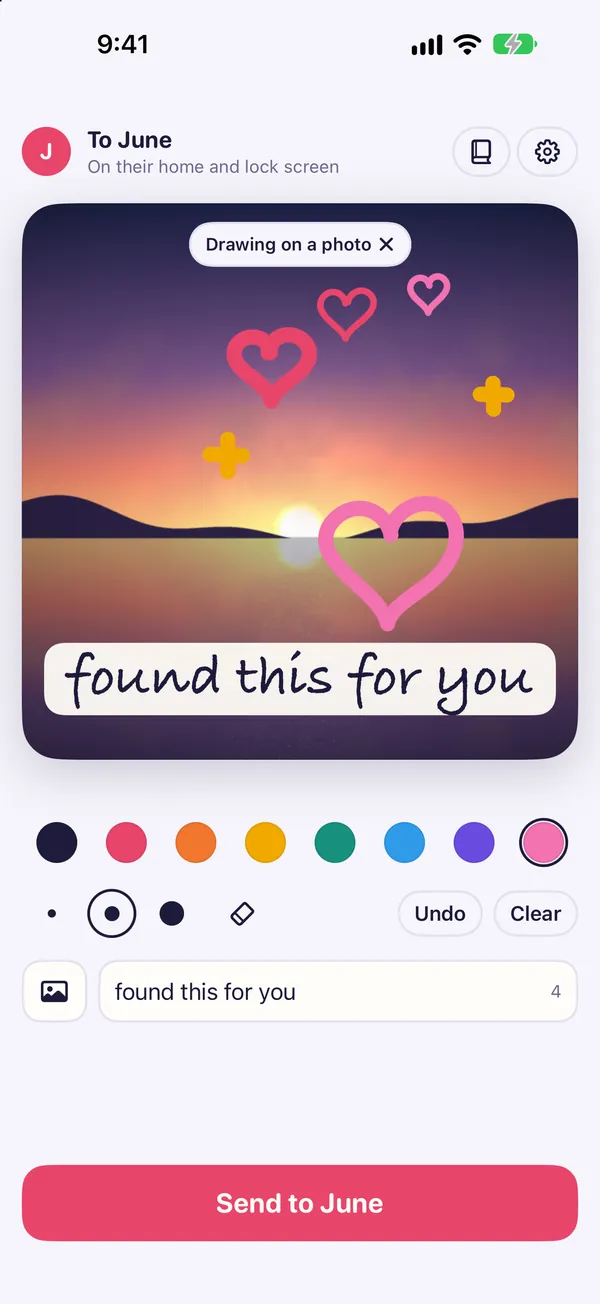
Drawing on a photo in Tuck uses the same tools as a plain note:
- 8 inks: navy ink, coral, orange, amber, teal, sky blue, violet and pink.
- 3 pen widths, an eraser, Undo and Clear.
- Pinch to zoom on the paper for small details, like a tiny hat on someone far away.
- One line of words, up to 22 characters, in a handwriting face near the bottom. On a photo, the words get a strip of paper under them so they stay readable over a busy picture.
Pick an ink that stands out from the photo. Pink and coral show up well against green and blue, and amber stands out on a dark photo. Use the thickest pen for hearts and arrows, and the thinnest one for faces and small labels.
Photos that work well
- Simple backgrounds. A wall, a table, a patch of grass. Your lines show up instead of getting lost.
- The sky. An open sky is the best paper there is. Draw a plane, a moon, a cloud with a face.
- A plate of food. Give your lunch a face, or draw an arrow to the bite you saved for them.
- A view. The water, the hills, the city from a window. Mark the spot where you wish they were standing.
- Wherever you are right now. A train seat, a desk, a waiting room. Ordinary places make good notes because they show your day.
Busy photos, like a crowd or a full shelf, are harder to draw on. If you use one, a thick pen and a bright ink help a lot.
Doodle ideas for photos
- Circle the thing: the dog, the cake, the sign with the funny typo.
- Hearts over a sunset.
- A mustache, a crown or glasses on a statue.
- An arrow with "you are here", or "I am here".
- A speech bubble for a pet or a pigeon.
- Two little stick figures on the empty bench in the photo.
- Tally marks for how many coffees it has been today.
For more ideas, plain or on photos, see things to draw for your partner.
What your person sees and can do
The note lands on their home screen widget, their lock screen widget, and as a notification that shows the drawing. iOS tints lock screen widgets, so it shows in one color there. When they open it, the note draws itself stroke by stroke, the way you drew it. If they have not added the widget yet, the couples widget guide shows how.
From there, they can:
- Send a heart.
- Doodle right on your note and send it back. A crown on your head, a mustache on the statue you already circled.
- Add to it and pass it back, taking turns on one drawing. "Replay 3 turns" replays every turn in order.
- Draw back with a fresh note.
- Save, share or delete it. Save adds that one image to Photos, only when they ask. They can share it as a picture or as a replay video of it drawing itself.
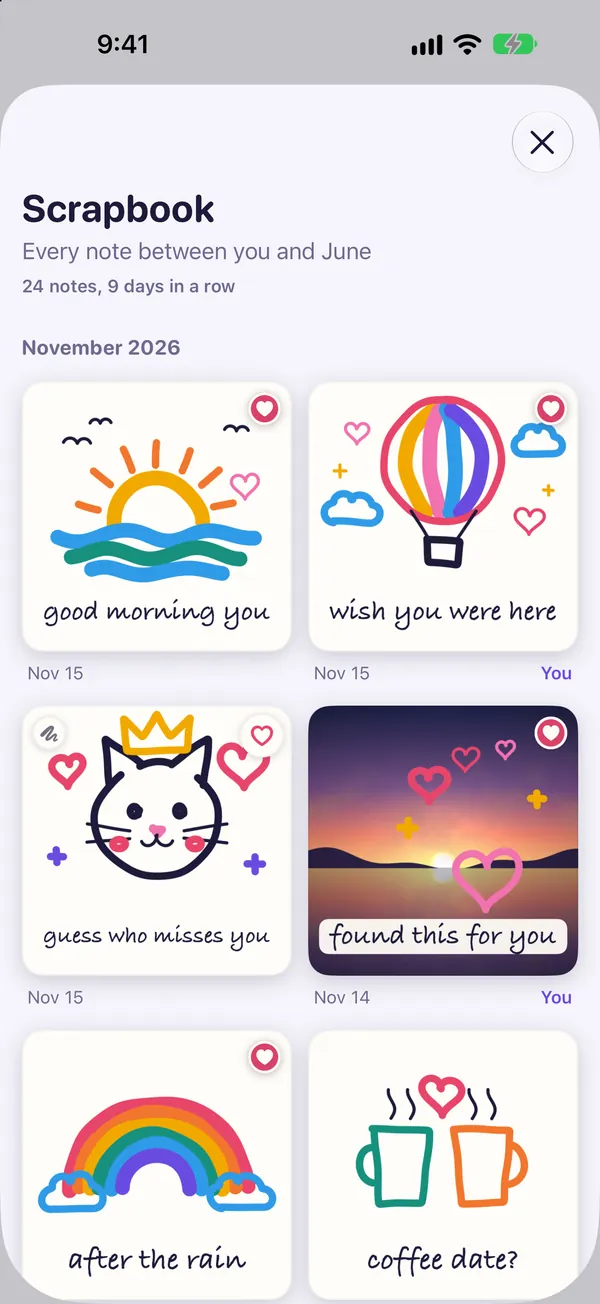
Every note between you, photos included, is kept in one scrapbook on each phone.
Privacy: what Tuck gets from your photos
Tuck has no access to your photo library. You pick one photo yourself, and Tuck gets only that one.
The photo you drew on is locked (encrypted) on your phone before it leaves, like the rest of the note, with a key that only your two phones hold. Some delivery details are not locked: a random ID for your pairing, random IDs for sender and receiver, what kind of item it is and when it was made. Those IDs are made by the app and are not your name, Apple ID, email or phone number.
Notes are kept in Apple's iCloud, in the Tuck app's database, and delivered with Apple's push notifications. Tuck has no server of its own, no ads and no tracking. The privacy page has the full details.
Step by step
- Pair with your person Open Tuck, tap "Invite your person" and send the link. Once they tap it, you are paired, and you only do this once.
- Pick one photo Choose the one photo you want to draw on. Tuck gets only that photo, not your library.
- Scribble on it Pick from 8 inks and 3 pen widths. The eraser, Undo and Clear are there if a line goes wrong.
- Zoom in for detail Pinch to zoom on the paper for small things, like glasses on a statue far away.
- Add a line of words Type up to 22 characters. On a photo, the words get a strip of paper under them so they stay readable.
- Send it Tap the send button with their name on it, like "Send to June". It lands on their widgets and as a notification.
Common questions
Does Tuck get access to my whole photo library?
No. You pick one photo yourself and Tuck gets only that one. It has no access to your photo library.
Can I write words on the photo?
Yes, one line of up to 22 characters, in a handwriting face near the bottom. On a photo, the words sit on a strip of paper so they stay readable.
Can my partner draw on the photo I sent?
Yes. They can doodle right on your note and send it back, or use Add to it to take turns on the same drawing. The replay shows every turn in order.
Can I draw on a photo with what is already on my iPhone?
Yes. iPhone has a built-in Markup tool for drawing on photos, and you can send the result the usual ways. Tuck is for sending it to one person so it lands on their home screen and lock screen.
Does the photo get saved to their camera roll?
Only if they ask. Save adds that one image to Photos when they choose it. Either way, the note is kept in the scrapbook in Tuck.