 Tuck
What a couples widget is
A widget is the small window an app can put on your iPhone home screen or lock screen. A couples widget shows something from one person: their latest drawing, a few words, a heart. You see it without opening an app or scrolling a chat.
That is the whole appeal. A note on the home screen feels less like a message you have to answer and more like finding a sticky note on the fridge. It suits couples who live apart, keep different hours, or just like leaving each other small things during the day. If you are apart for a while, the long distance guide has more ideas for staying close.
What you can send to their screen
In Tuck, a note is a square of paper you draw on. You get 8 inks (navy ink, coral, orange, amber, teal, sky blue, violet and pink), 3 pen widths, an eraser, Undo and Clear. Pinch to zoom on the paper when you want small details.
You can add one line of typed words, up to 22 characters, written in a handwriting face near the bottom of the note. You can also pick one photo and draw on that instead, which is covered in drawing on photos.
When you send it, the note lands in three places on your person's phone: their home screen widget, their lock screen widget, and a notification that shows the drawing. When they open it, the note draws itself stroke by stroke, the way you drew it.
Add the widget to your home screen and lock screen
Each of you adds the widget on your own phone. It is called Latest Note, and it shows the newest note from the other person. So Sam adds it to see June's notes, and June adds it to see Sam's.
Home screen: touch and hold an empty spot, tap Edit, then Add Widget, and pick Tuck. Choose the small or large size.
Lock screen: touch and hold the lock screen, tap Customize, then the widget row, and pick Tuck. Choose the rectangular or circular one.
You can use both. A nice setup is the large widget on your home screen and the rectangular one on your lock screen.
Widget sizes and what each one shows
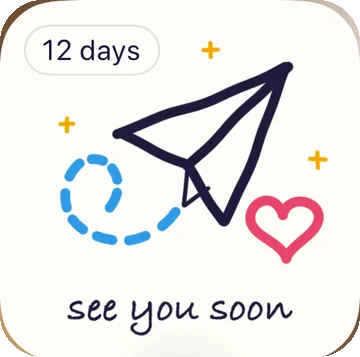
- Small, home screen: the newest note from your person in a small square.
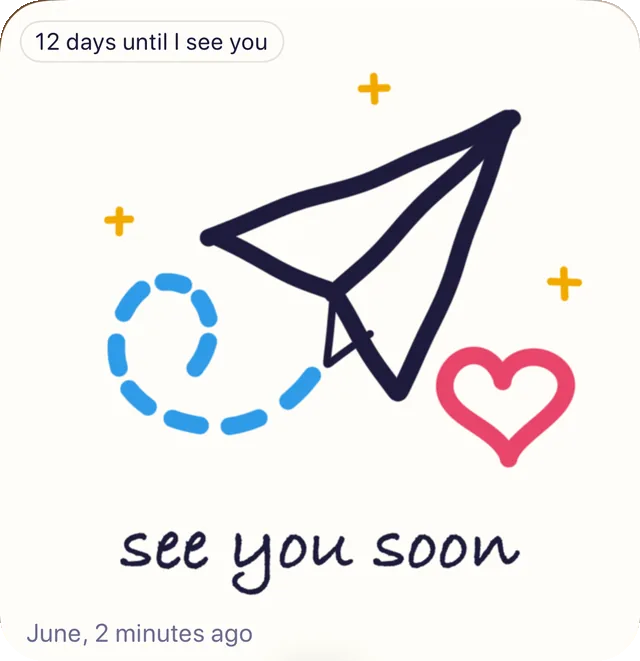
- Large, home screen: the newest note at a bigger size, so small details and the line of words are easy to see.
- Rectangular, lock screen: the note in one color, with "From June" beside it.
- Circular, lock screen: the note in one color, in a small circle.
The lock screen shows the note in one color because iOS tints lock screen widgets. That is expected, not something to fix. Open the note to see every ink you used.
The widget can also show a countdown. Turn on "Count down the days" in Tuck's Settings and pick the day. The large widget then shows something like "12 days until I see you", the small one shows "12 days", and the rectangular lock screen widget shows "12 days to go". The countdown stays on your phone, and your person sets their own. The countdown guide walks through it.
Why the widget can lag behind the notification
Apple limits how often any widget can refresh. So the notification can show up first, and the widget can be a little behind.
If you get a notification but the widget still shows an older note, open Tuck. Opening the app always fetches anything waiting, so the new note is there even when the widget has not caught up yet.
For notes to arrive at all, both phones need to be signed in to iCloud and allow notifications for Tuck.
Troubleshooting
- No notes arrive. Check that both phones are signed in to iCloud in the Settings app and that notifications are allowed for Tuck. Then open Tuck on the phone that is waiting.
- The widget shows an older note. Open Tuck to fetch anything waiting. The widget catches up when iOS lets it refresh.
- The lock screen note is all one color. That is iOS tinting lock screen widgets. Open the note to see it the way it was drawn.
- The invite link did not work. An invite link works once and for 7 days. Ask for a fresh one, and send it only to your person, because it carries the key to your notes.
- Your person has an Android phone. Tuck is iPhone only, with no Android or web version, and it needs iOS 26 or later.
More answers are on the support page.
Step by step
- Get Tuck on both iPhones Tuck is free and made for iPhone, and it needs iOS 26 or later. Each of you needs it on your own phone.
- Invite your person Open Tuck, tap "Invite your person", and send the link by text or any other way. The link carries the key to your notes, so send it only to them.
- Open the link on their phone Your person taps the link. If they do not have Tuck yet, they install it and tap the same link once more.
- Add your first name Tuck asks for a first name once, so each note can say who it is from. There is no account, password or email.
- Add the home screen widget On each phone, touch and hold an empty spot on the home screen, tap Edit, then Add Widget, and pick Tuck. Choose small or large.
- Add the lock screen widget Touch and hold the lock screen, tap Customize, then the widget row, and pick Tuck. Choose rectangular or circular.
- Draw your note Draw on the square of paper with any of the 8 inks and 3 pen widths. Add one line of words if you like, up to 22 characters.
- Send it Tap the send button, which shows your person's name, like "Send to June". The note lands on their widgets and as a notification.
Common questions
How do I put a note on my girlfriend's lock screen?
You both need Tuck on an iPhone, paired with the invite link. She adds the Tuck widget to her lock screen: touch and hold the lock screen, tap Customize, then the widget row, and pick Tuck. Every note you send then shows there, in one color because iOS tints lock screen widgets.
Can I send drawings to my boyfriend's home screen if he has Android?
Not with Tuck. It is iPhone only, with no Android or web version, and both phones need iOS 26 or later.
Is the Tuck widget free?
Yes. Tuck is free, with no ads, no subscriptions and nothing to buy. The widget comes with the app.
Why did the notification come before the widget changed?
Apple limits how often widgets refresh, so a widget can be a little behind the notification. Opening Tuck always fetches anything waiting.
Do we need to make an account?
No. You pair with an invite link that works once and for 7 days. There is no account, password or email.